
Know what your Mac is doing, and get it ready to be seen.
Pulse 1.2.97 for Mac · Pulse Remote build 53 for iPhone and iPad · November 2026
Pulse lives in your menu bar. It tells you, in plain words, what is holding back an edit, a grade or a render, and what to do about it. It clears your screen for a call in one move, keeps up to a week of history, and shows it all on your iPhone and iPad with Pulse Remote. This guide gets you going, a chapter at a time.
Two editions. Pulse comes as a download from creative.space, with every feature. An edition for the Mac App Store, sandboxed as Apple requires, is coming. Features marked (download only) are only in the download.
Nothing to set up. Pulse asks for no permission to start. Mic & Camera is on from the start and never opens either device. Everything else is off until you turn it on.
The app's file is creative.space Pulse, and System Settings' Full Disk Access list shows it by that name. Elsewhere, it is simply Pulse. A copy installed before 1.2.96 keeps its old name, CSI Pulse, and updates as normal under it.
If both end up installed, an old CSI Pulse and a new creative.space Pulse, the panel says so and offers Move It to the Trash. Your settings and readings stay, because both copies share them. Open the old copy instead and the panel offers Open creative.space Pulse.
Click Pulse's icon and the panel drops down. With Icon only on, right-click the icon or Option-click it. Opening Pulse again from Finder or Spotlight opens it too.
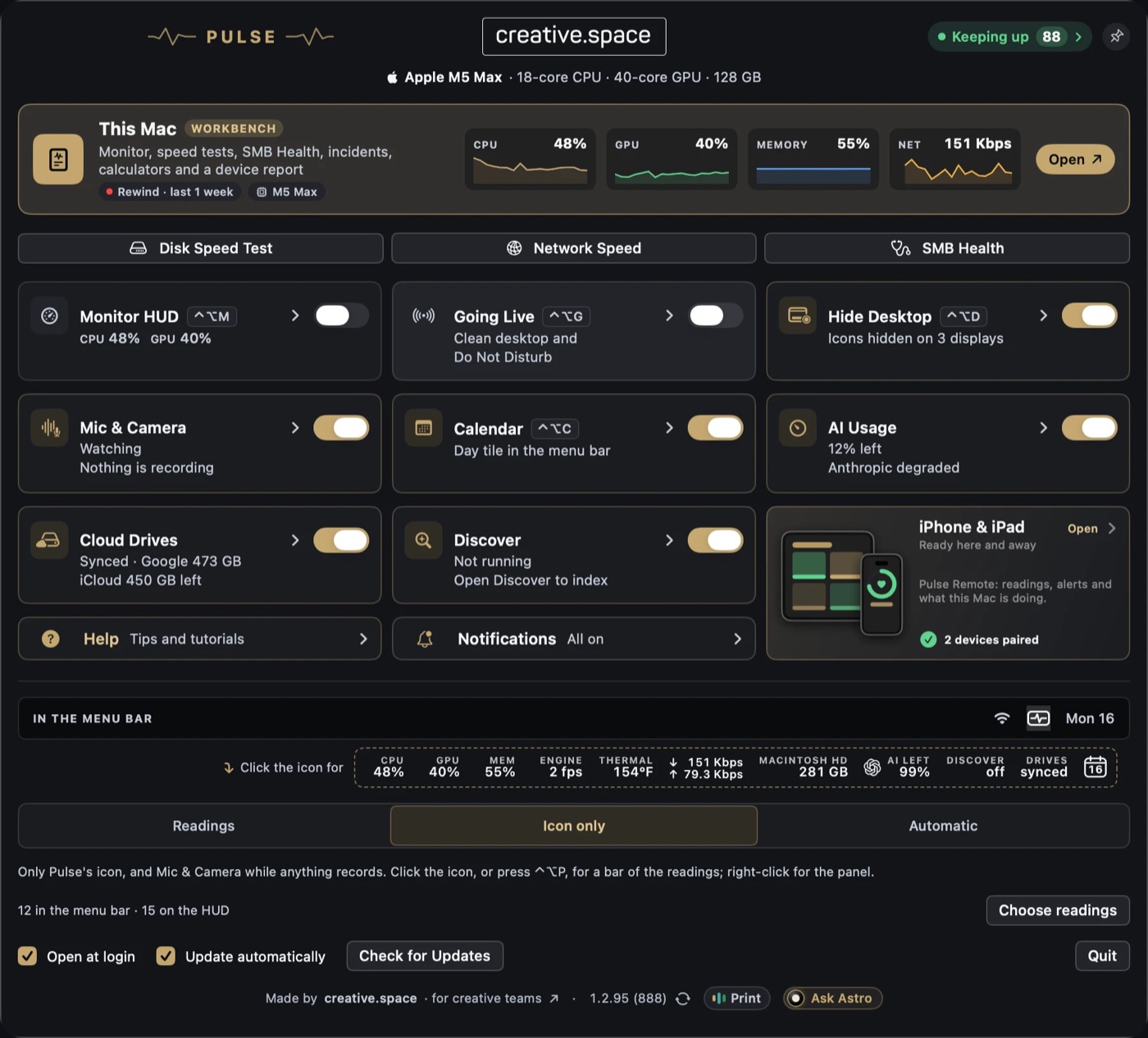
From top to bottom:
The Mac App Store edition has six switches, with Help, Notifications and iPhone & iPad on a row of their own.
Choose how Pulse sits in the menu bar under In the menu bar in the panel:

Choose readings opens the Readings table: a row for each reading, with four switches.
| Switch | What it decides |
|---|---|
| Menu bar | Whether the reading shows in the menu bar |
| HUD | Whether it shows on the Monitor HUD |
| Alert | Whether Pulse drops a note when something is wrong: a drive over 90% full or reporting a problem, heat slowing the chip, memory pressure at critical, or the verdict held at Constrained for 10 minutes |
| Devices | Whether your paired iPhone and iPad see it |
Drag a row to change the order: the menu bar and the HUD share it. Storage has a row for each drive; Add drive adds one. A drive that isn't plugged in stays listed as not mounted.
Click any reading for its dashboard, right under it. Click it again, or press Escape, to close it. The ? opens its help, the gear its settings, and Full report the This Mac window. Where Pulse sees a problem, Copy prompt for your AI assistant waits at the bottom (Help from your AI assistant).
A reading with nothing yet shows a dash. A reading this Mac can't take says Unavailable. Pulse never shows a missing reading as zero.
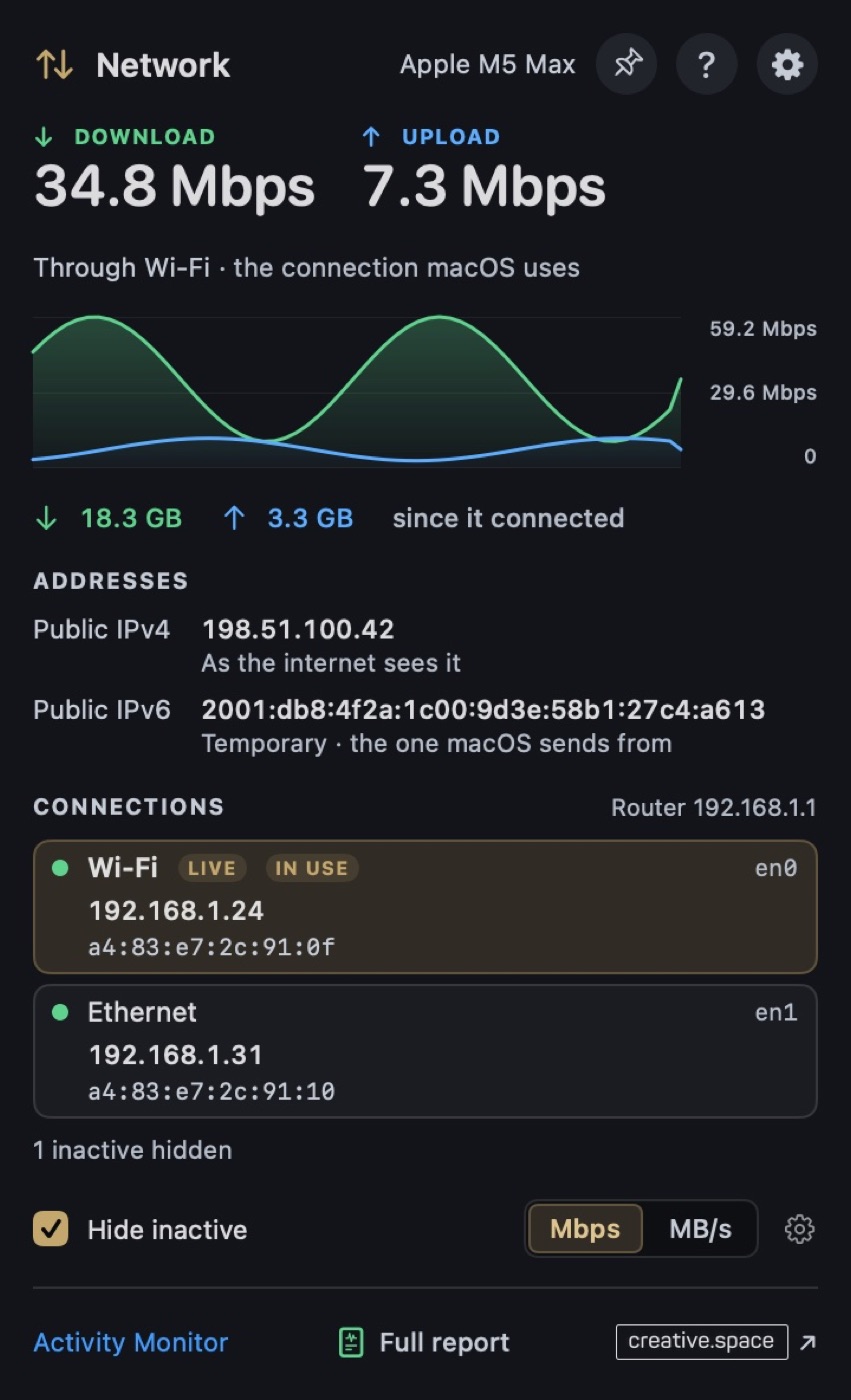
Click the network reading for download and upload, each connection with its addresses, and this Mac's public addresses:
Each connection lists one IPv6 address and how many more it has. Select an address to copy it.
Press ⌃⌥C in any app, or click the calendar in the menu bar, and the month drops down. Click a day to copy it; Shift-click a second day to count the days between. ⌘-click a delivery day to name it, and it counts down above the month, in the menu bar or on the HUD.
The Monitor HUD is a heads-up display that floats above your apps: a small glass readout on every Space, even over a full-screen app, that never takes the keyboard. Press ⌃⌥M in any app, or flip it in the panel.

Presenting? Turn on Hide the Monitor HUD too in Going Live's settings: it steps away while you're live and comes back after.
One move before a screen share, a client review, a stream or a recording:
While you are live, a red dot sits beside Pulse's icon, and the panel says ON AIR with the time, whether Do Not Disturb is on, and any microphone or camera still open. Switch it off and everything goes back as it was, a desktop you had already hidden included.
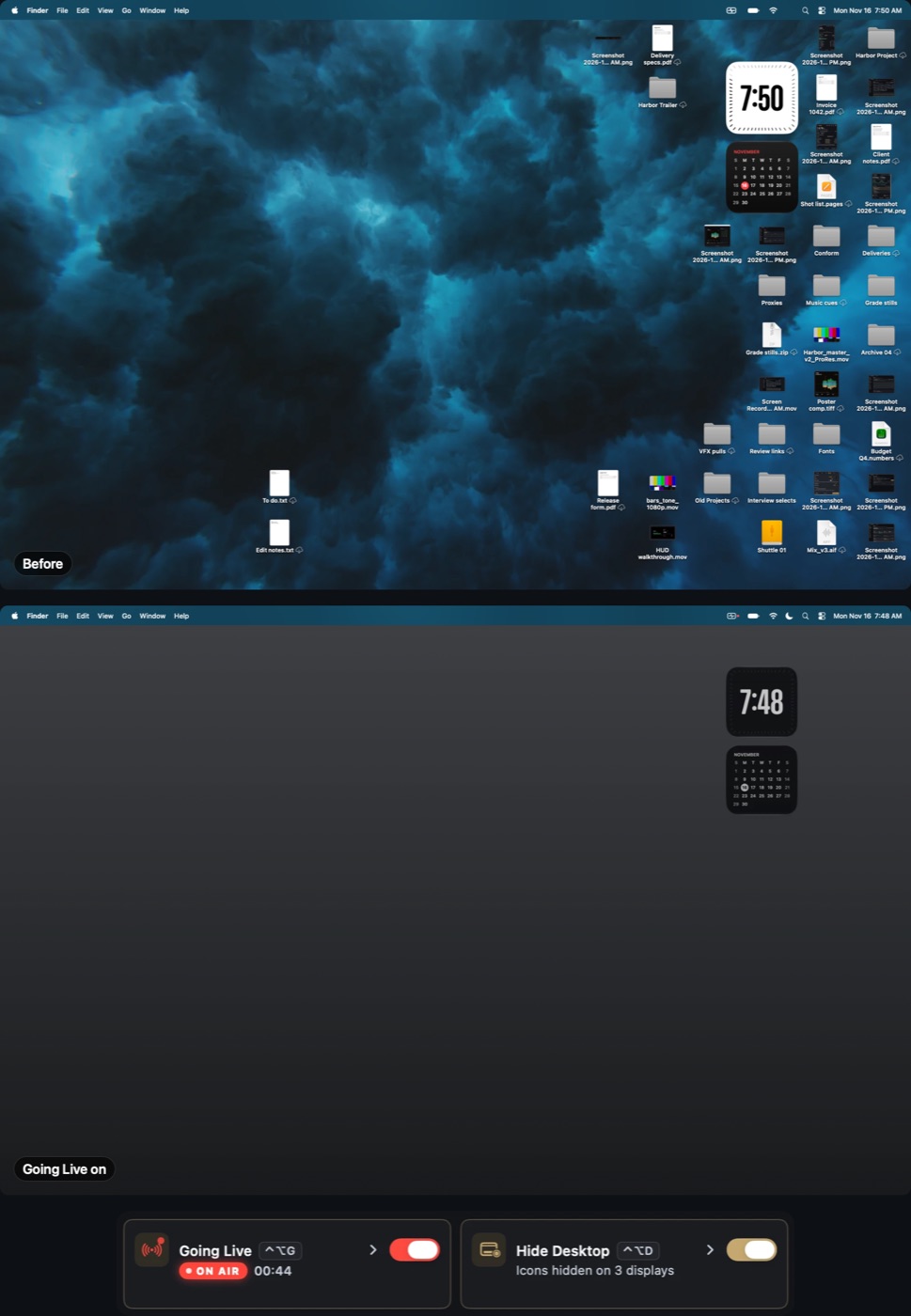
Set up Do Not Disturb once. macOS lets apps switch Focus only through Shortcuts. Open Going Live's settings and click Start setup: Shortcuts opens, with a small guide that checks off each shortcut as it appears. Make two:
| Name the shortcut | Its one action |
|---|---|
| CSI Going Live On | Set Focus: Turn Do Not Disturb On until Turned Off |
| CSI Going Live Off | Set Focus: Turn Do Not Disturb Off |
The names must match exactly. Try it turns Do Not Disturb on for three seconds. CSI Desktop uses the same two shortcuts, so one setup serves both. Until then, Going Live still clears the desktop, and the panel shows Set up beside it.
A plain backdrop. On the Backdrop page of its settings, turn on A plain color in place of the wallpaper: Graphite, Black, Gray, Navy, Green, Putty or any color, with a gradient, lighter at the top, if you like. Your wallpaper itself is not changed.
Go live when a camera comes on. Turn it on in Going Live's or Mic & Camera's settings: a camera that comes on and stays on takes you live, and the camera going off brings you back. An app that only checks the camera as it opens never takes you live.
The files and folders on your desktop go, on every display and Space. Every window stays where it is.
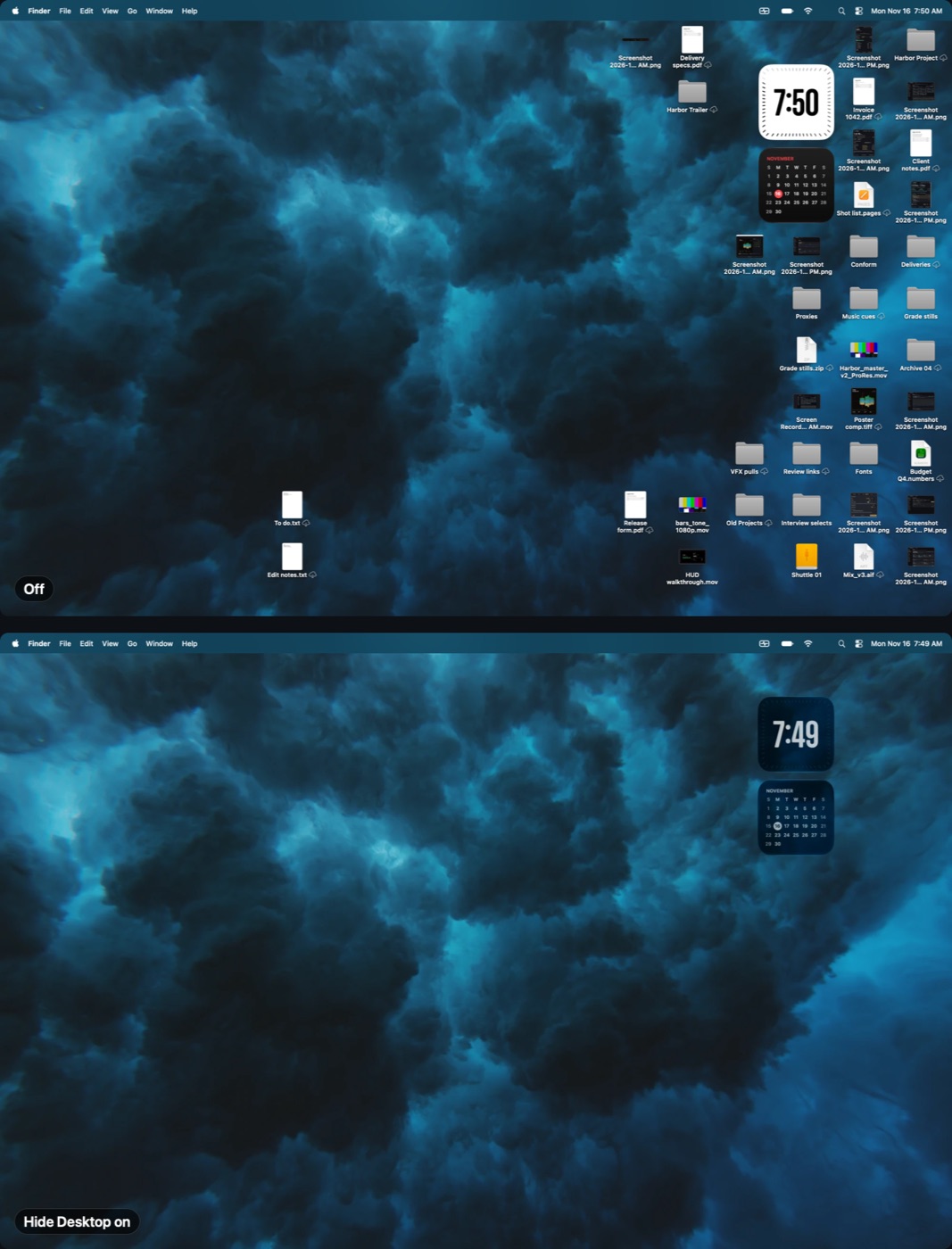
Hidden by hand, the desktop stays hidden after a restart. Hidden only for Going Live, it comes back with you.
The moment an app starts recording, its reading steps into the menu bar, the microphone in orange and the camera in green, and a note says which app. It is on from the start.
| Tag | What it means |
|---|---|
| Microphone | Reported: macOS names the app and the device. |
| Camera | An estimate, marked Likely: macOS says only that a camera is on, so Pulse names the app whose microphone opened with it, or the app in front. |
| NO WINDOW | An app with no window and no Dock icon is recording. The note is red and stays until you close it. Trust or Quit it from the note. |
A camera's note offers Go Live. Click the reading for its dashboard: who is recording now, today's strip, the week by app, and a Your week card to share that names no app.
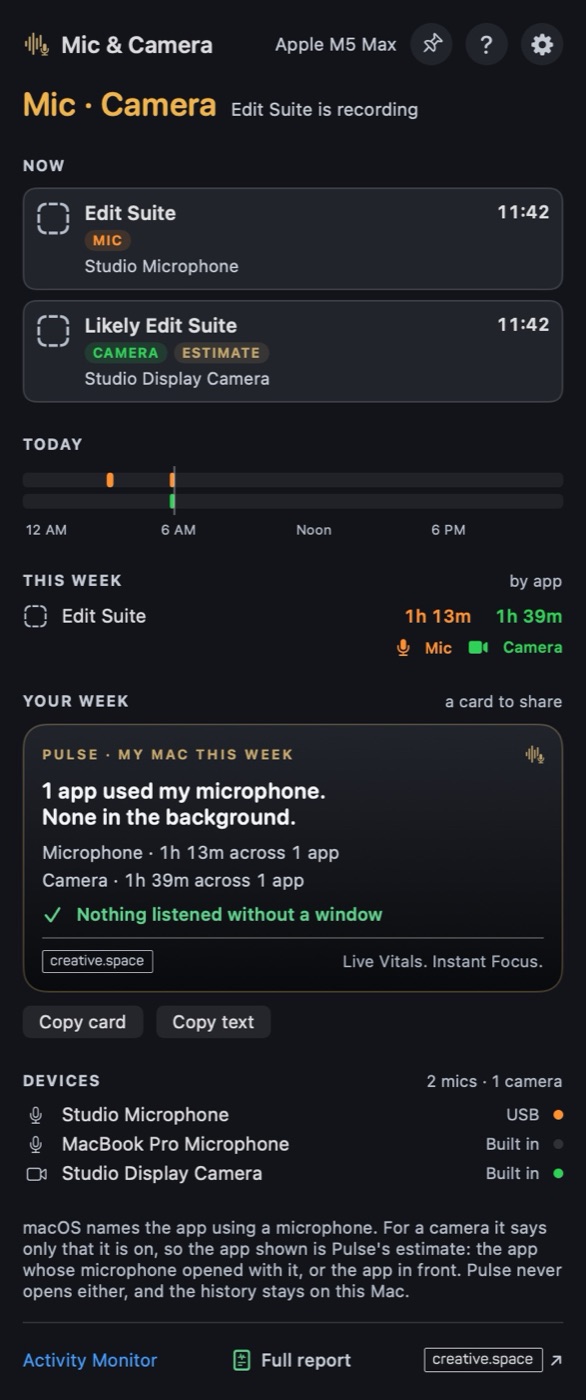
Pulse reads the flags macOS keeps about each device. It never opens a microphone or a camera, so it never turns on a recording light, and it asks for no permission. Its history stays on this Mac for 30 days.
Turn on AI Usage in the panel. It shows whether OpenAI, Anthropic and Google Gemini are up, from the public status pages you tick. In the download, it also shows what your Codex, Claude and Antigravity plans have left and when each window resets.
| Used | What it means |
|---|---|
| Under 80% | Plenty left. |
| 80% | Pace yourself, or plan around the reset. |
| 95%, or a limit | The app may refuse until the reset. The reading holds on it, in red. |
At this pace. Under each window, Pulse says where your pace leads: At this pace, runs out Thu 3:00 PM · 2 d early, or about 62% used when it resets. It needs half an hour of figures first. When a window would run out well before it resets, one notification says so.
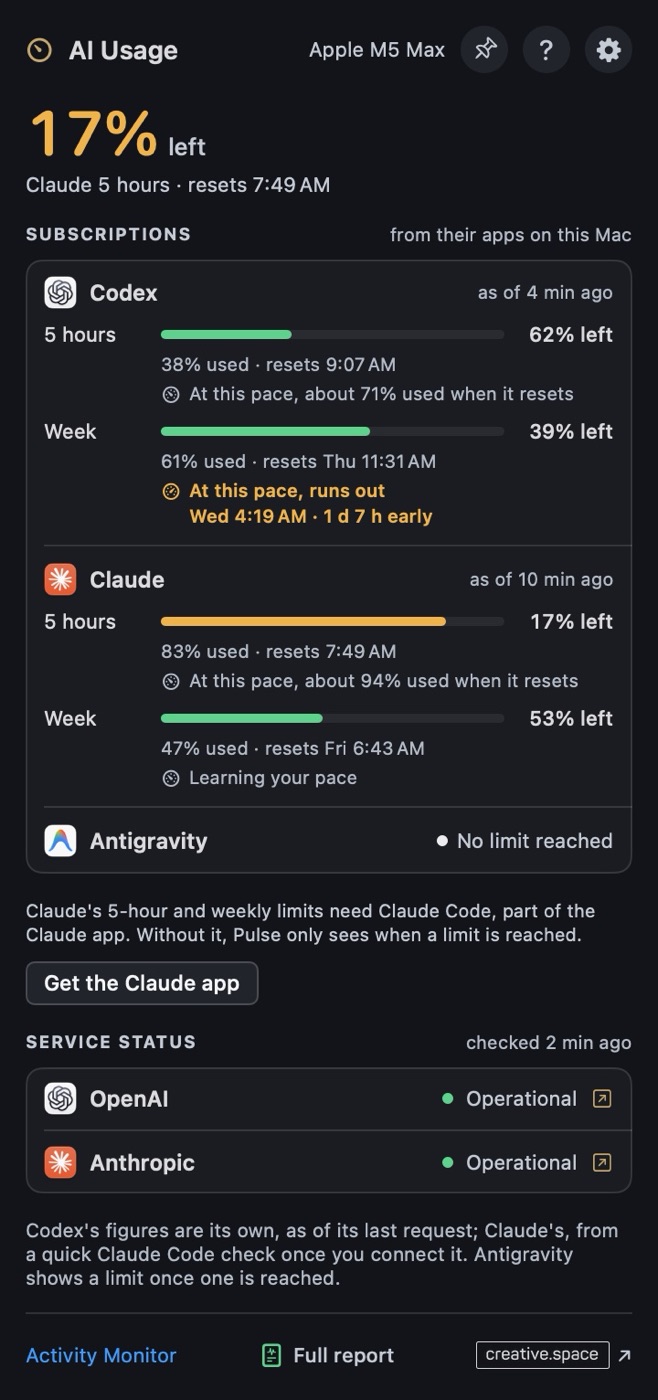
Where the figures come from (download only):
AI Model shows the local models loaded in Ollama and LM Studio and the memory they hold, talking only to 127.0.0.1. In the download, it also shows tokens a second while a model writes, MLX models running in your own processes, and creative.space Discover's models by name.
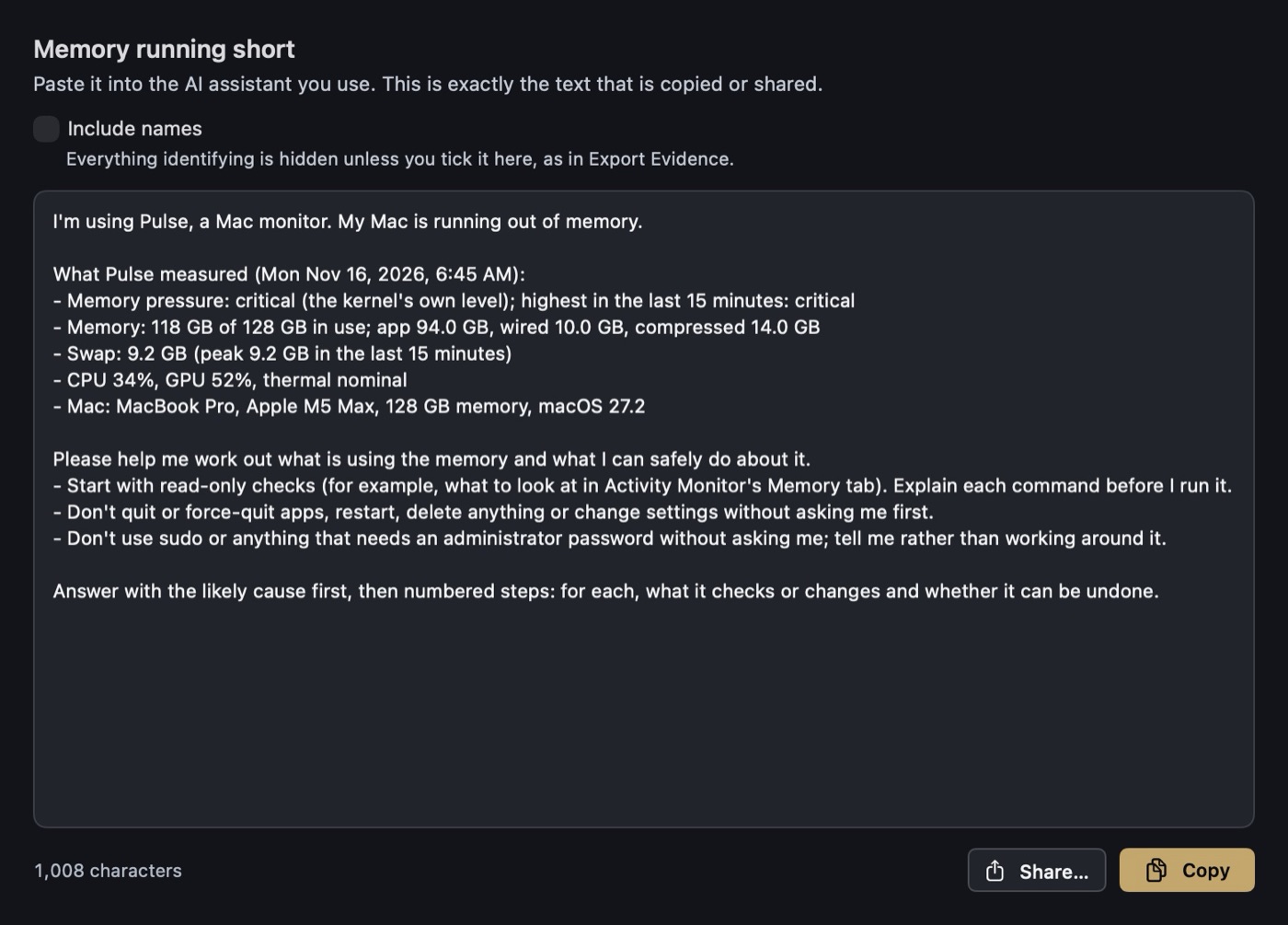
When Pulse sees a problem (a drive nearly full or reporting a problem, memory running short, the Mac running hot, the verdict at Constrained, a share that keeps dropping, a cloud drive that stopped syncing), Copy prompt for your AI assistant gives you a short, ready-made prompt to paste into the assistant you already use. With nothing wrong, it asks what is slowing this Mac.
You find it at the bottom of the Storage, Memory, Thermal and Cloud Drives dashboards and on the HUD's cards, beside Dashboard on a health note, under the verdict's advice, on an Incidents row, beside Save… in Export Evidence, and on SMB Health.
Plain files an AI assistant, or IT, can read: a summary with the verdict, health score and every reading, the last day of readings, the incident log, the drives and a device report, with a README that explains each file.
It is numbers only unless you turn on names, and some things, such as calendar titles, Wi-Fi names and serial numbers, are never written. On a share, anyone with access can read the files. Pulse never deletes anything there: turning the folder off stops the writing.
Whether Google Drive and iCloud Drive are syncing or up to date, what each has waiting, Google Drive's storage and iCloud's space left. Dropbox and OneDrive join when their apps are on the Mac: whether each runs, the accounts signed in, and what it is moving now. A note drops when Google Drive's changes have waited 15 minutes, when a drive's app quits, and when a drive is nearly full. These notes start off and come on the first time you show the reading.
Pulse reads each drive's own records, read-only. It never lists a drive's folder, which can stall while a drive builds its index, and sends nothing.
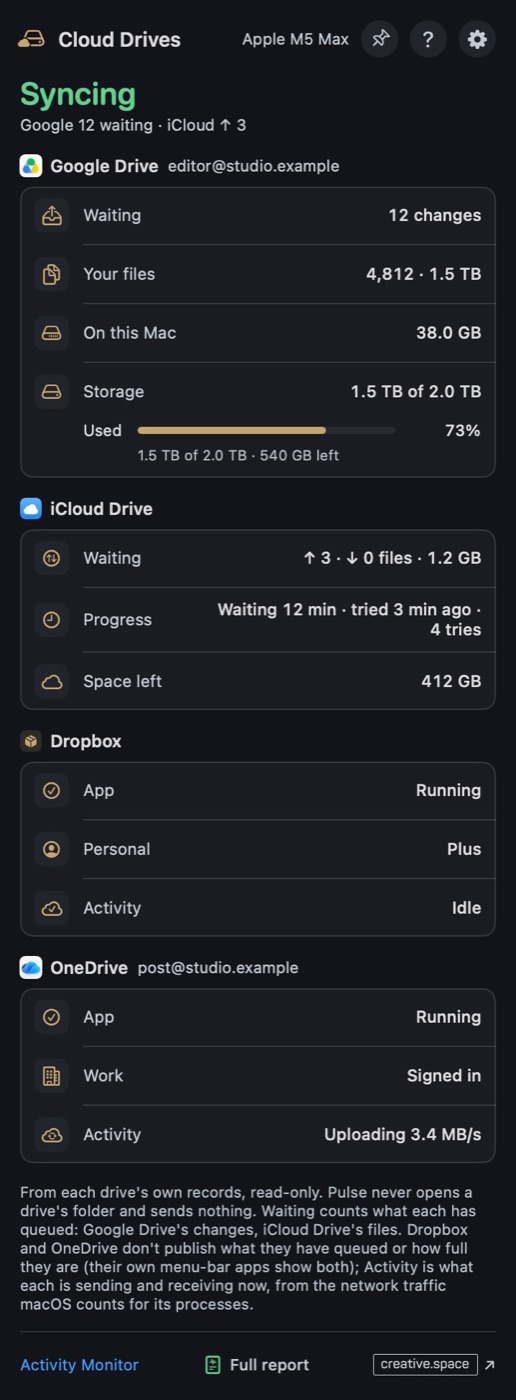
Finish setting up iCloud Drive. macOS keeps iCloud Drive's queue private until you let Pulse read it. Until then, iCloud's Waiting row reads Needs access, the menu bar reads set up, and the dashboard leads with three steps:
With access, Pulse still reads only iCloud Drive's own record of what is waiting, never your files. A waiting row says how it is going (Waiting 12 min · tried 3 min ago · 4 tries) and reads Stuck after five tries, or when the account is out of space.
Once creative.space Discover is on the Mac, its switch joins the panel. It shows how much of your media library is searchable, the step Discover is on, when everything will be searchable, and how much of the Mac Discover uses. When it rests, it says why in a word: Up to date, Easing off, Waiting, Holding, Paused or Not running. Pulse reads only the small status file Discover keeps for it, read-only, and shows no file or library names. An optional note says when your library becomes searchable.
Click This Mac in the panel, or Full report at the foot of any dashboard. The sidebar has three groups, and the ? at the top opens the help for the page you're on.
| Group | Pages |
|---|---|
| Measure | Disk Speed ⌘3, Network Speed ⌘5 and Test History ⌘8 (download only); Device Report ⌘2 |
| Diagnose | Monitor ⌘1 and Incidents ⌘9; Processes ⌘7 and SMB Health ⌘6 (download only) |
| Calculate | Overview ⌘4, and eight calculators |
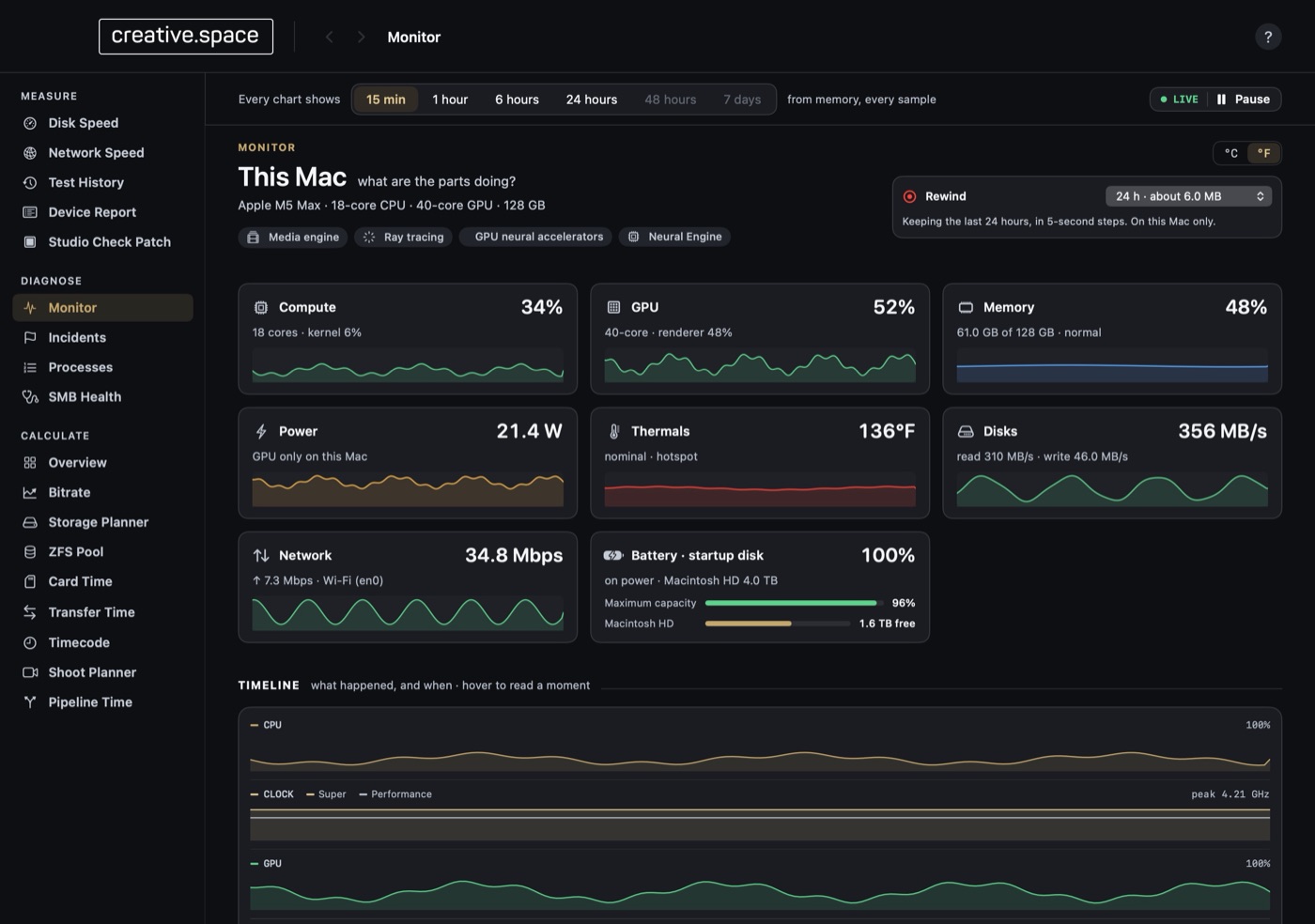
Eight summary tiles, then a timeline of every lane on one time axis: every core, the GPU, memory, heat, disks and network. Point anywhere to read every lane at that moment. What this means, under each card, explains it. The Network card lists each connection with its addresses, Wi-Fi signal and link rate.
Rewind: turn it on at the top right: Off, 1 h, 6 h, 12 h, 24 h, 48 h or 1 week. It takes about 6 MB a day, numbers only. Every chart shows sets how far back the page looks, and Pause (the space bar) holds a moment still. Time when the Mac slept stays empty, never zero.
What changed and when: a share going offline, memory pressure rising, the Mac getting hot, sleep, Going Live, a speed test finishing. It needs Rewind on. Mark This Moment adds your own note. Events name apps and drives only after you turn on Name apps and drives. Export Evidence saves a span for support, with every name replaced by a stand-in by default, and its preview is the start of the file, word for word. Copy prompt sits beside Save….
This Mac's spec sheet: chip, memory, drives, displays, Wi-Fi, Ethernet, Thunderbolt and battery. Copy it, Download JSON, or save a PDF with Full report. It holds the serial number, so share it with care.
A real drive's sustained write and read, and how many streams of each codec it carries. Sequential or Edit-bay; Quick 4 GB, Standard 16 GB or Torture 64 GB. It writes only when you press Run test, never more than half the free space, and removes its files after. Google Drive is never offered.
Internet: your connection, how far it slows when busy, and the path, with who owns each step. Share throughput: what a mounted share really moves, reading and writing at once. Neither runs until you start it.
Checks every share you're connected to, the same check as CSI Desktop's Standard mode: mounts, Wi-Fi, routes, servers, signing, Spotlight and more, worst first. It only reads, asks for no password, and takes about a minute.
The 40 busiest processes, live, ⌘7 (download only); every Disk Speed and Network Speed result, up to 500, to compare and export, ⌘8 (download only); and eight calculators for planning a job, from Bitrate to ZFS Pool, ⌘4. After a speed test, Transfer Time, Shoot Planner and Pipeline Time can use what you measured (download only).
The verdict says what to do: Keeping up, Working hard, Needs attention or Constrained. The health score says how far off you are, in one number from 0 to 100. It sits beside the verdict at the top of the panel, in Checks and fixes, and on your iPhone and iPad.
Each reading gets a score, and the Mac's is the lowest of them, so one bottleneck pulls it down however fine the rest are. Click the verdict, and What the score is made of lists every scored reading, lowest first, with what would raise it: how much space to free, for one.
| Score | Word | When |
|---|---|---|
| 80 and up | Healthy | Where the verdict says Keeping up |
| 55 to 79 | Fair | Where it says Working hard or Needs attention |
| Under 55 | Poor | Only where it says Constrained |
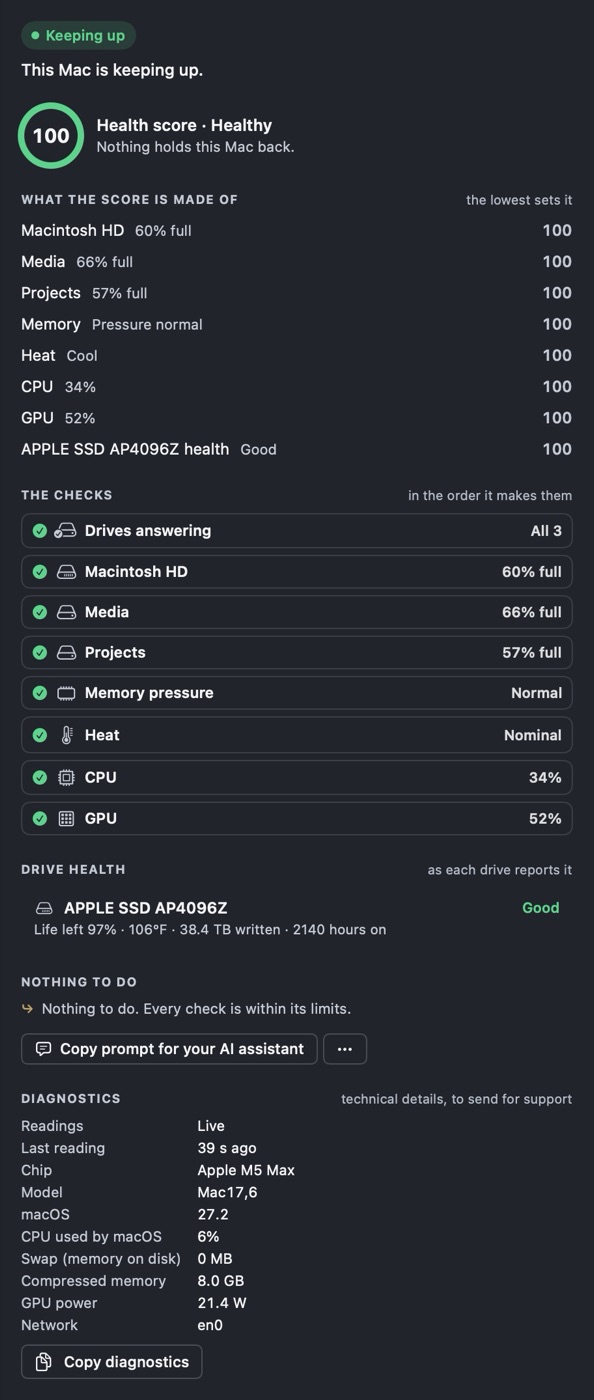
Checks and fixes lists every check in order, marks the one that decided the verdict THE CAUSE, and offers what to do: Manage storage, Show Downloads, Show the Trash, Quit for the apps holding memory or the processor, and Copy diagnostics.
Under the checks: each NVMe drive's own health log, read as Pulse opens and every half hour, with no prompt. That covers the internal SSD and NVMe drives over Thunderbolt. A drive behind USB shares no log, so it is left out rather than called healthy.
| Word | What the drive reports |
|---|---|
| Good | Nothing to say. You see the life left, temperature, data written and hours on. |
| Wearing | It has used 70% or more of its rated life, by the maker's estimate. |
| Errors | It has logged media errors. Keep a backup current. |
| Replace soon | 90% or more of its rated life used, or spare blocks below the drive's own limit. |
| Warning | The drive reports a critical warning. Back it up now. |
| Hot | Past its own heat limit, in amber: give it air or a rest. Not a failing drive. |
In the Mac App Store edition, a drive whose log macOS keeps out of reach is simply not listed.
Pulse Remote shows what Pulse sees on your own Macs: the verdict and health score, every reading, Rewind's history and alerts. It is free, and it only watches: nothing in it changes a Mac, but for Find's chime or name, where the Mac allows it. Pulse Remote, for iPhone and iPad, is coming to the App Store.
No Mac to hand? Try a sample Mac shows the whole app with example data.
On iPhone, five tabs: Macs, Alerts, Calculators, Ask Astro and Settings. Macs starts with This iPhone, then a card for each Mac with its status, verdict and three telling readings, and ends with Find. On iPad, a sidebar lists This iPad, your Macs, Find, Alerts, Calculators, Ask Astro and Settings; narrow the window and it switches to tabs.
Pulse Remote starts dark. Settings, Appearance offers System, Light or Dark.
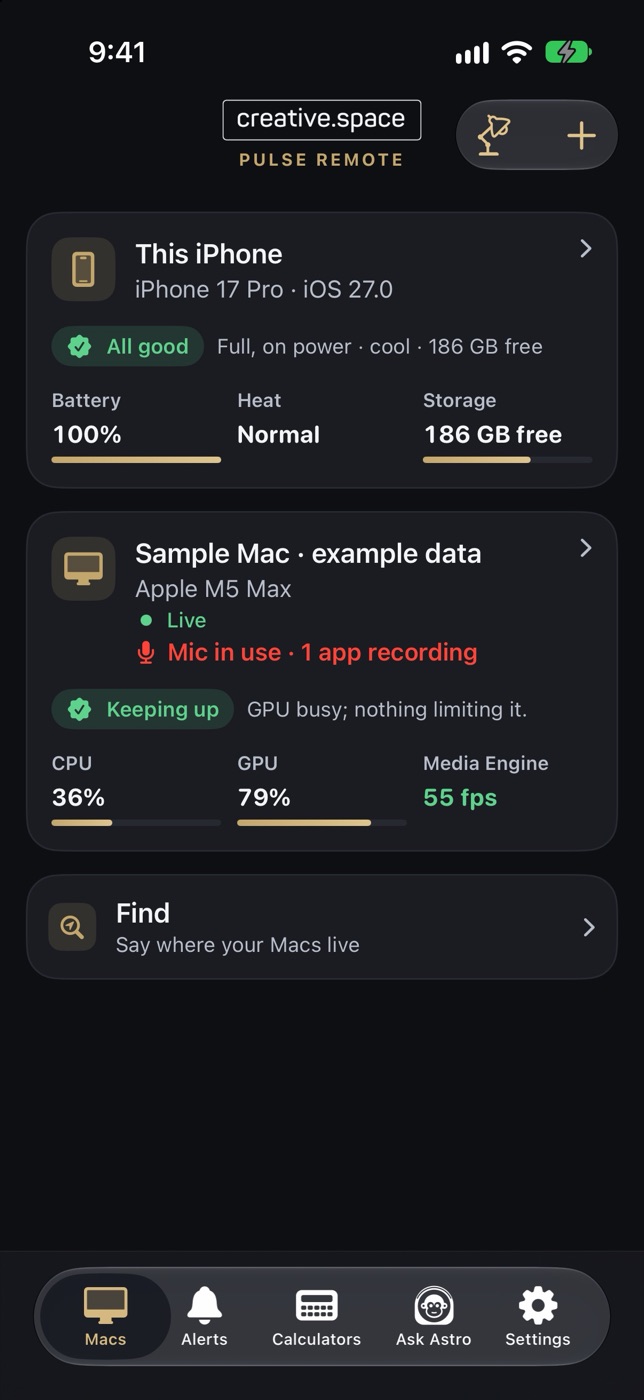
| Status | What it means |
|---|---|
| Live | Connected directly, on your network. |
| Away · through the relay | Connected from elsewhere, through the Pulse relay. |
| Last seen | What you see is from then. The tiles dim, and the page says Showing the last readings, from … |
| Where you are | How it reaches your Mac |
|---|---|
| On the Mac's network | Directly, encrypted for each paired device. |
| Anywhere else | Through the Pulse relay, only if Share when I'm away is on, on the Mac. Everything is sealed for your own paired devices before it leaves the Mac: the relay sees which device, when and how much, never what. |
Each Mac chooses what it sends, under Send alerts and Mic & Camera alerts. Turn on Alerts in Pulse Remote's Settings for notifications. With the app closed, an alert reaches you only through the relay, so Share when I'm away must be on; the notification says only that your Mac has an alert until your device opens it. Mute Alerts quiets a Mac, a reading, or notes and warnings; a muted alert still shows in the list.
These work with no Mac, but for the Wi-Fi spot test, which measures to one.
Tap This iPhone (or This iPad) at the top of Macs: its battery, heat, storage, memory, CPU and network, its link to your Macs, and its addresses, the public ones included. Show this iPhone on my Macs, on unless you turn it off, tells your Macs on this network its charge, heat and free storage, never through the relay.
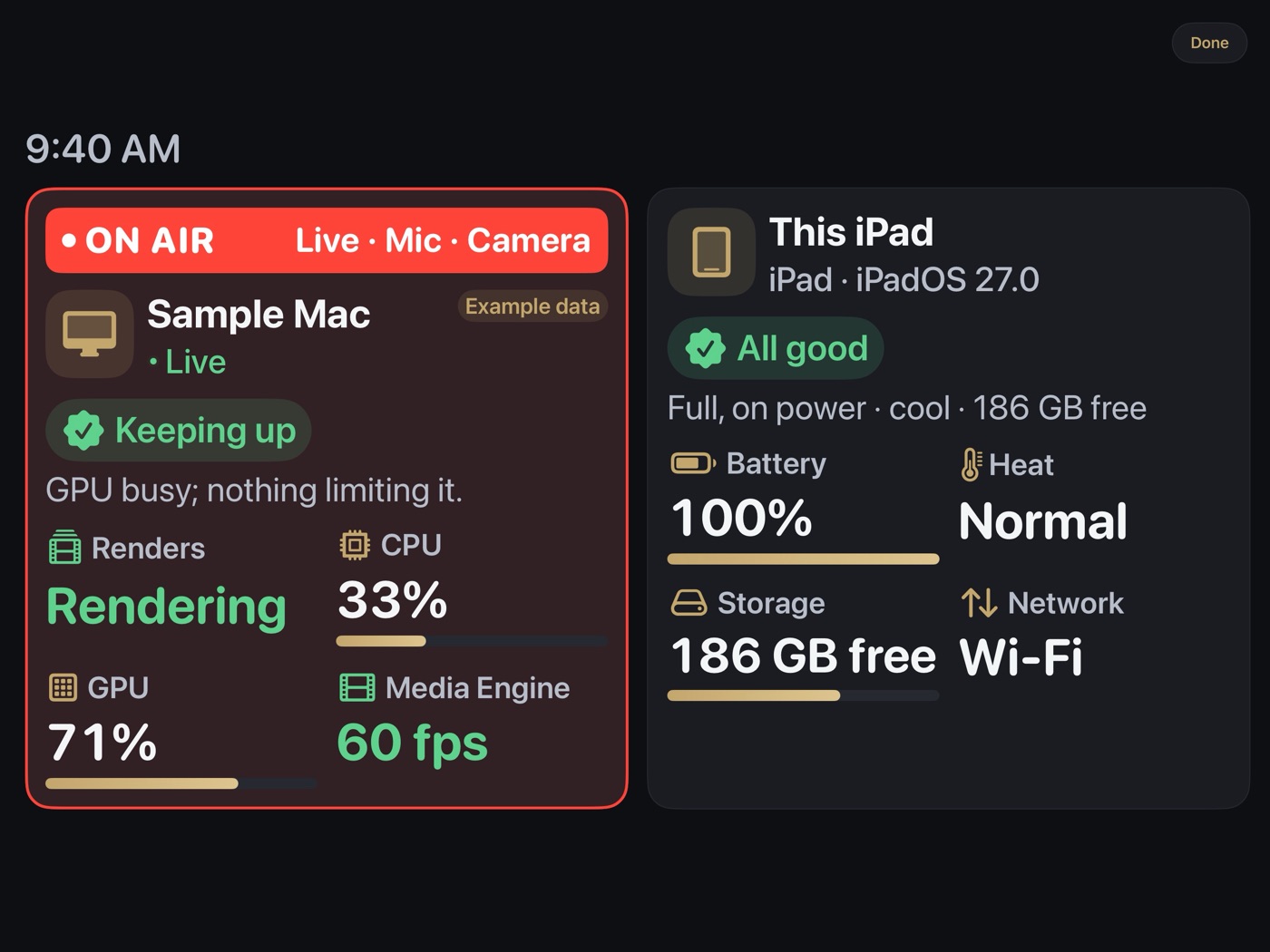
Put a spare iPhone or iPad on a stand and it becomes an always-on monitor: every Mac's verdict and four readings, full screen, the screen kept on, dimming after 30 minutes untouched. Start it from the lamp at the top of the Macs list, or the Desk Mode row on This iPhone. A Mac that is Going Live, or has a microphone or camera in use, gets ON AIR across its card, ringed in red. With Share when I'm away on, the Macs it watches can be at another site.
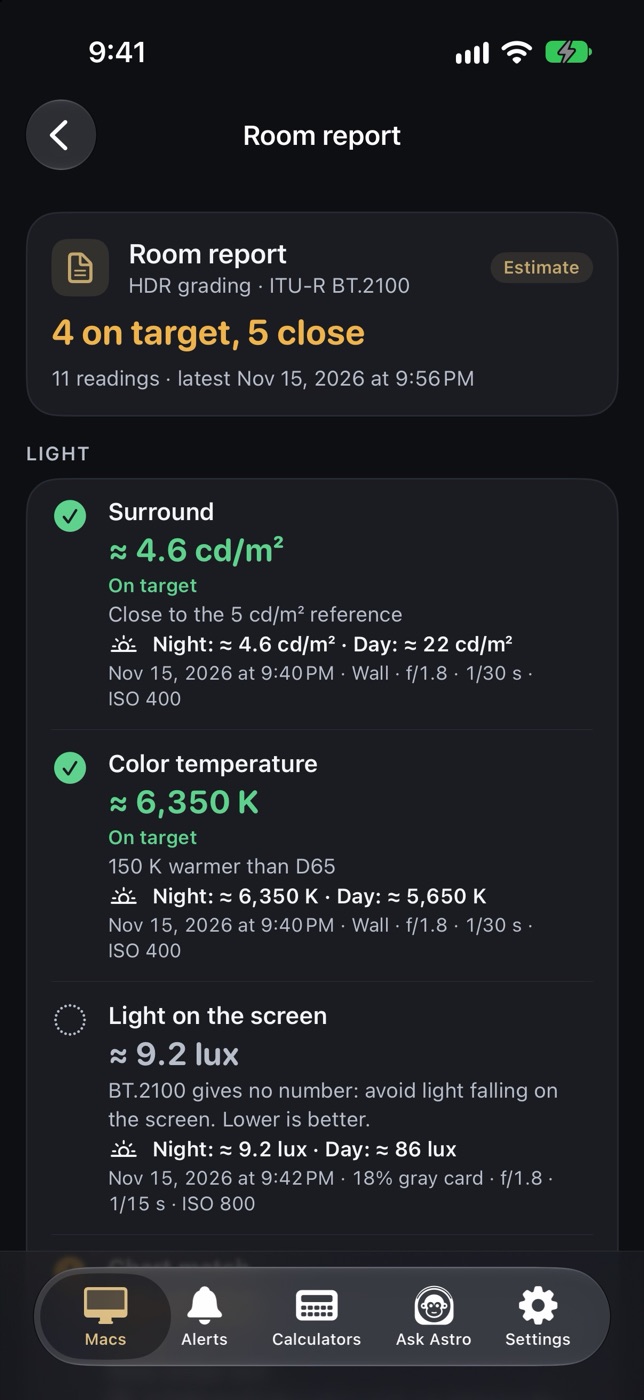
On This iPhone. It measures your room with the device's camera and microphone. First choose what the room is for: HDR, SDR, Photo or Print (Print as Critical · P1 or Practical · P2).
| Group | Checks |
|---|---|
| Light | Surround: the light on the wall behind your display. On the screen: the light falling on the display, or the print, in lux. Chart & light quality: how faithfully this light shows color, from a 24-patch chart. Flicker. Wall: whether the wall is neutral, against a gray card. |
| Sound | Level: how loud the room is. Before/After: measure, change something, measure again. Spectrum: where the noise sits, and what is likely making it. Echo: how long a clap rings. |
| Room | Viewing distance, on a device with LiDAR. Room report: the latest of each check, On target, Close or Off target, to keep or share as a one-page PDF. |
Every result is an estimate from an iPhone or iPad, and the report says so. The camera and microphone run only while a check runs. Nothing is recorded; only the numbers are kept, on the device.
Calibrate the camera, if you like, against a white of known brightness. Your Mac can show one: choose Studio Check Patch in Pulse's Help menu, or in the This Mac window's sidebar, for a white square on black on the display you choose, beside the steps (a reference preset; True Tone, Night Shift and automatic brightness off; a dark room). It is a guide, not a meter, and changes no setting.
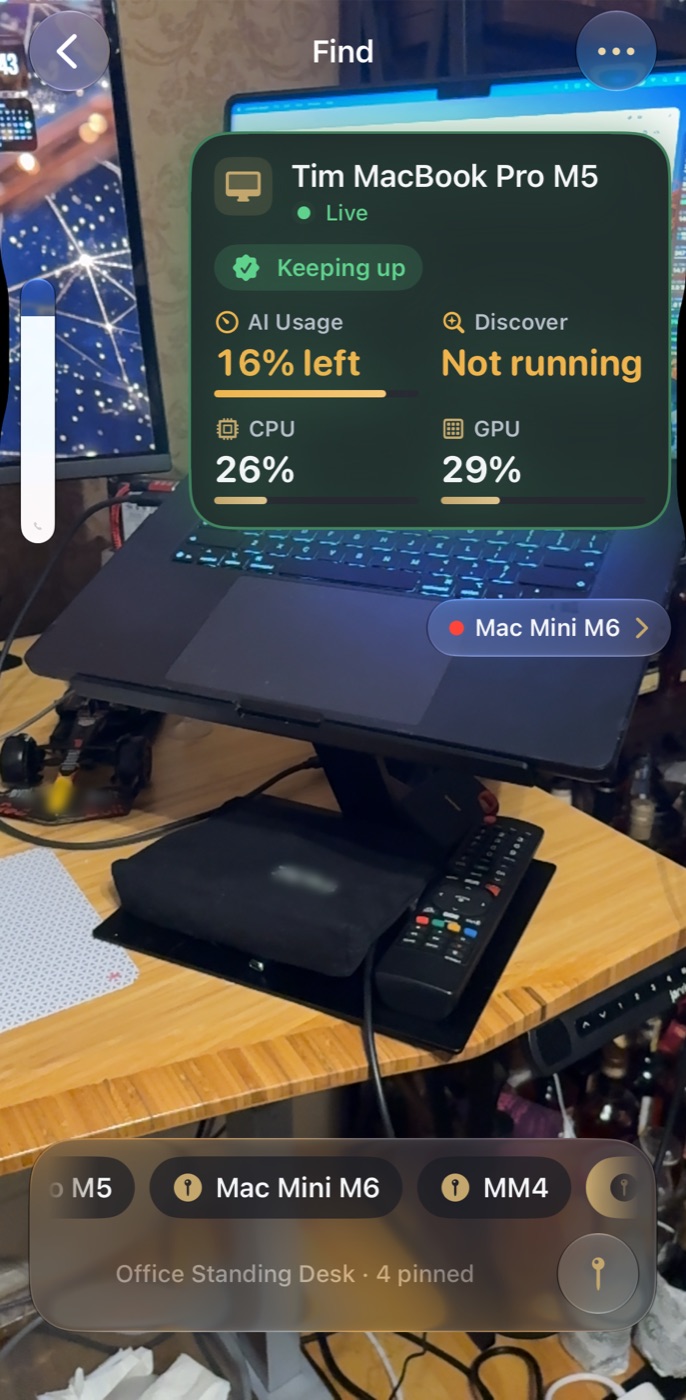
Find, last in the Macs list (in the sidebar on iPad), says where your Macs live.
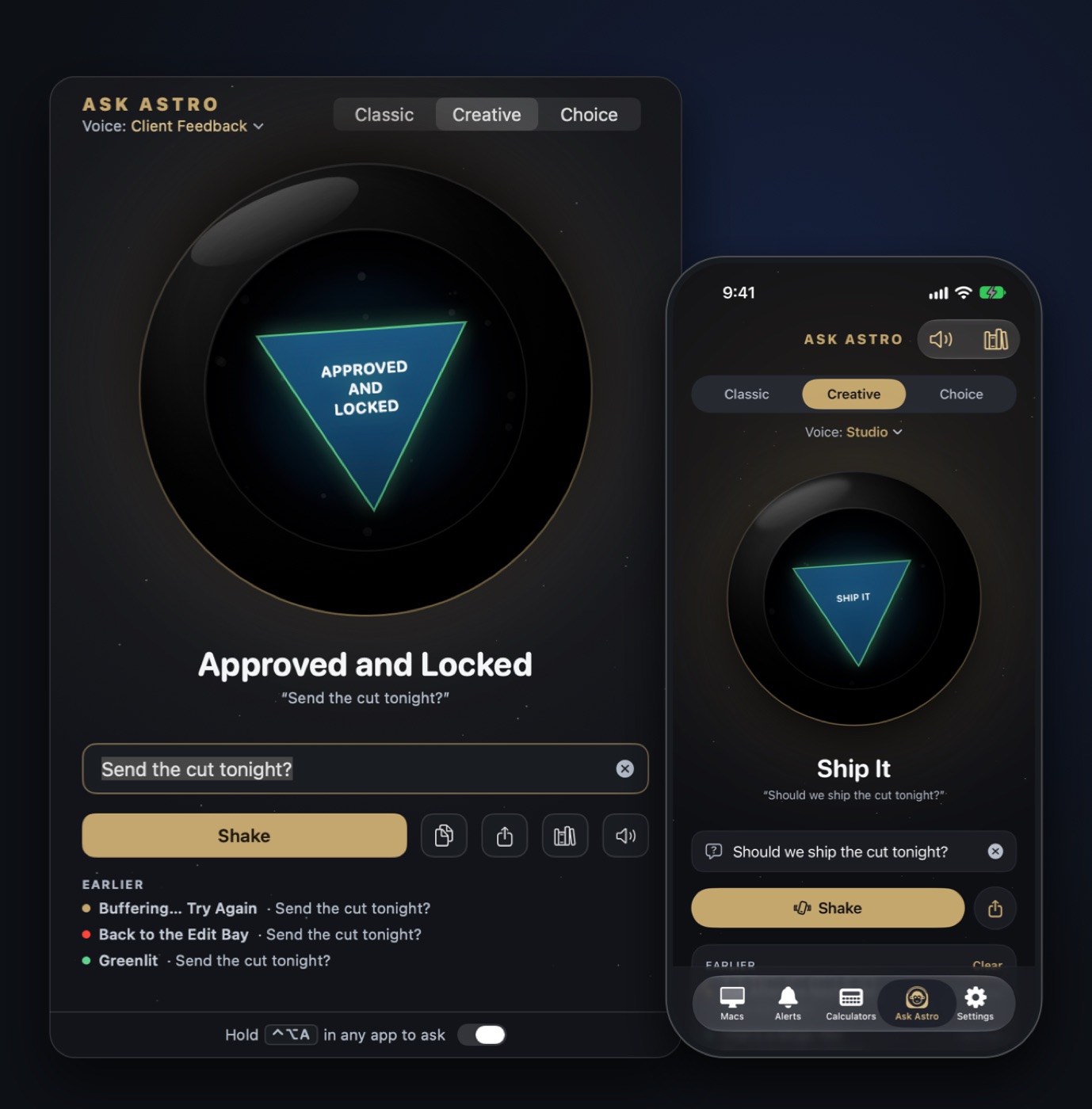
Ask Astro is the creative.space ball, for the questions a studio asks all day, on the Mac and on iPhone and iPad.
No account and no analytics: what Pulse measures stays on your Mac, except what you share with your own iPhone and iPad.
macOS's own counters; the in-use flags of microphones and cameras; your AI apps' own records (limits only); Google Drive's and iCloud Drive's own records, read-only; creative.space Discover's status file; each NVMe drive's health log; local AI runtimes at 127.0.0.1; and your own router, for this Mac's public IPv4 address.
Only for what you turn on or press, and each request gives only the name Pulse:
It carries what your Mac shares to your own devices, sealed end to end: it can't open any of it. It keeps what it needs to work: random ids for your Mac and devices, which devices follow which Mac, each record's kind, size and time, and push tokens for alerts and widgets. That is why the App Store privacy labels declare Device ID and Other Usage Data. Turn Share when I'm away off and the relay forgets this Mac. Look Up gets your public address back, and the relay keeps nothing of it.
Rewind (numbers only), Incidents, Test History, Mic & Camera's 30 days, Pulse Print, Week in Pulse, Ask Astro and the Device Report, until you share, export or save them. Events name apps and drives only after you turn on Name apps and drives. Export Evidence and Copy prompt replace names with stand-ins unless you choose otherwise. The Assistant folder writes only where you choose.
Off until you turn it on. Encrypted for each paired device on your network, and sealed end to end through the relay. Identifying details stay out unless you include them. Pulse Link's keys are files only you can read, never the Keychain. On the device, Studio Check keeps numbers only, Find's places and map stay on the phone, Ask Pulse uses Apple's on-device model, and the Wi-Fi spot test, Identify and This iPhone's own state never use the relay.
The only ones Pulse may ask for: Calendar access, if you turn on the calendar's events; local network, the first time you share with your iPhone and iPad; notifications, before the first Render done; and access to a folder, drive or share that Render done watches or a test uses. Full Disk Access is yours to give, only if you want iCloud Drive's queue.
The privacy policy is at creative.space/pulse/privacy.
(download only) The download keeps itself up to date, without you quitting it. Update automatically, at the foot of the panel, is on from the start. A few minutes after Pulse opens, and every six hours, it reads one small file on creative.space's package server. When a newer Pulse is named there, Pulse downloads it and checks it: the fingerprint (SHA-256) must match, and the app must be Pulse, signed by creative.space and notarized by Apple. Anything else is thrown away. The check sends nothing about your Mac.
| Step | When |
|---|---|
| Check | Every six hours |
| Download and verify | SHA-256, signed, notarized |
| Ready | Restart to Update appears under the header |
| Goes in on its own | Ready for 5 minutes, and the Mac left alone for 10 |
The Mac App Store edition, when it comes, is updated by the App Store.
| What you see | What to do |
|---|---|
| A reading says Unavailable | That signal isn't measurable on this Mac, or not yet. On an Intel Mac, the media engine is one. Pulse never shows a missing reading as zero. |
| Readings vanished from the menu bar | macOS hid them for lack of room. Choose Automatic or Icon only under In the menu bar, or show fewer readings. |
| The readings stopped moving | Nothing is watching them: the HUD is off, no menu-bar readings show and no dashboard is open. They start again the moment one is. |
| Pulse says it slowed down, or paused | Pulse watches its own cost. Above 30% of one core it reads every 3 seconds; if that isn't enough, it pauses until you click Resume. Copy report puts what it saw on the clipboard for you to send us. A test you start never counts. |
| A shortcut does nothing | CSI Desktop is open: while it runs, ⌃⌥M, ⌃⌥G and ⌃⌥D are its own. ⌃⌥P works only with Icon only. |
| Do Not Disturb doesn't turn on | Going Live needs two Shortcuts named exactly CSI Going Live On and CSI Going Live Off. Start setup, in Going Live's settings, says which is missing or misnamed. |
| The HUD won't move | Let clicks pass through the HUD is on. Turn it off on the Look page of the HUD's settings. |
| Cloud Drives says set up, or iCloud Drive says Needs access | Open the Cloud Drives dashboard and follow Finish setting up iCloud Drive: Full Disk Access, then Quit & Reopen. |
| Disk Speed writes read low on an SSD | If the drive is 90% full or more, Disk Speed says so: an SSD that full writes slower. Free some space and test again. |
| A share is slow | Run SMB Health, then Share throughput on the Network Speed page. On the Monitor's Network card, look at the Wi-Fi signal and link rate: wired Ethernet holds its speed. On Pulse Remote, a Wi-Fi spot test finds the weak spots in a room. |
| Claude isn't connected | Click Connect Claude… in AI Usage and approve on Claude's page in your browser. If it can't finish, Use Terminal instead runs the same sign-in. |
| An update says what went wrong | Read the line beside the version. Couldn't reach the update server passes once the Mac is online. Couldn't replace Pulse here; the installer is open: drag the new Pulse from the installer into Applications. |
| A ready update hasn't gone in | It waits until the Mac has been left alone for 10 minutes and nothing of Pulse's is in use. Click Restart to Update to put it in now. |
| An older copy, CSI Pulse, is also installed | Click Move It to the Trash in the panel. Your settings and readings stay. |
| The iPhone or iPad can't find the Mac | Be on the same network. On the Mac, allow Pulse under System Settings, Privacy & Security, Local Network, then quit and reopen Pulse. On the device, allow Pulse Remote under Local Network. A code expires after five minutes. |
| No health score on iPhone | The Mac sends it while it shares CPU, GPU, Memory, Thermal and Storage. |
| No alerts with the app closed | Turn on Alerts in Pulse Remote's Settings, and Share when I'm away on the Mac. |
| Keys | What it does |
|---|---|
| ⌃⌥M | Monitor HUD on or off |
| ⌃⌥G | Going Live on or off |
| ⌃⌥D | Hide Desktop on or off |
| ⌃⌥C | Open the calendar |
| ⌃⌥P | With Icon only: the bar of readings |
| Hold ⌃⌥A | Ask Astro, floating over any app |
| Esc | Close the panel, a dashboard or the calendar |
| ⌘1 to ⌘9 | Pages of the This Mac window |
| Space | In the This Mac window: pause, or go live again |
| ⌘, | While a Pulse window is open: the panel |
csi-pulse://live/toggle | Going Live from a key, a launcher or a script |
Every switch has a link like this one: hud, live, desktop and mic, each with /on, /off or /toggle. A link that would turn off Going Live, Hide Desktop or Mic & Camera asks first, because any app can send one.
Pulse and Pulse Remote are free from creative.space, by DigitalGlue. No account, no analytics. Privacy policy: creative.space/pulse/privacy.
This guide describes Pulse 1.2.97 and Pulse Remote build 53. The help inside Pulse (the ? on any dashboard, or Help in the panel) has every page in full.


